

On this page 8 sections
- Can you turn off Meta AI completely?
- How to turn off Meta AI on WhatsApp (as far as it goes)
- How to turn off Meta AI on Instagram
- How to turn off Meta AI on Facebook and Messenger
- Your Meta AI chats and ads: what you should know
- Meta AI still showing up? Quick fixes
- Prefer an AI you control?
- Frequently asked questions
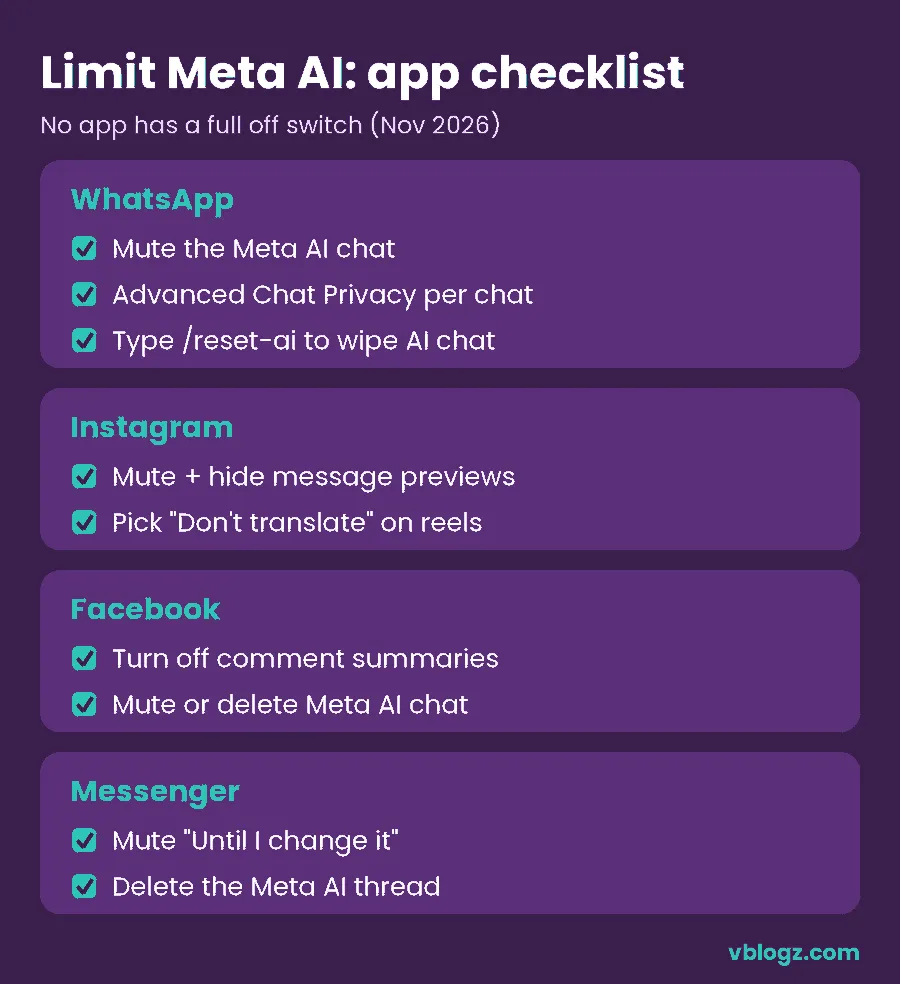
If you want to know how to turn off Meta AI, here's the honest answer first: you can't switch it off completely in WhatsApp, Instagram, Facebook or Messenger. There's no single off button in any of Meta's apps as of November 2026. What you can do is mute it, hide it, stop it from reading certain chats, turn off its translations and summaries, and wipe what you've already told it. Done together, that gets you very close to a Meta AI-free experience.
The short version
- WhatsApp: mute the Meta AI chat, turn on Advanced Chat Privacy in chats you care about, and type /reset-ai to clear your AI conversation.
- Instagram: mute the Meta AI chat and hide its previews, then choose "Don't translate" on reels you'd rather hear in the original language.
- Facebook and Messenger: mute or delete the Meta AI thread and turn off comment summaries on your posts.
- Privacy: anything you type to Meta AI can shape the ads you see in most countries, so avoid sharing personal details with it.
Can you turn off Meta AI completely?
No. Meta builds the assistant into the search bar, the chat list and several feed features, and it doesn't offer an account-wide toggle to remove it. Reviews of the apps by Android Authority and Built In reach the same conclusion: you can only reduce how often you see it.
Some people suggest rolling back to an old app version that predates Meta AI. We don't recommend it. Old versions miss security fixes, and WhatsApp eventually forces an update anyway.
So the realistic goal is this: keep Meta AI out of your notifications, out of your private chats, and out of your data as much as Meta allows. The steps below do exactly that, app by app.
How to turn off Meta AI on WhatsApp (as far as it goes)
WhatsApp is where most people bump into Meta AI, through the coloured ring button above the new-chat icon and the "Ask Meta AI or Search" bar. You can't delete either, but you can make the assistant quiet and keep it out of your conversations.
1. Mute the Meta AI chat
- Open WhatsApp and tap the Meta AI ring (or open the Meta AI chat if it's in your list).
- Tap Meta AI at the top of the chat to open its info page.
- Tap Notifications or Mute, then choose Always.
It'll still sit in the app, but it won't ping you.
2. Turn on Advanced Chat Privacy in sensitive chats
This is the most useful control most people haven't heard of. WhatsApp launched it in April 2025, and according to the official WhatsApp blog it stops others from exporting the chat, auto-saving its media to their phone, and using its messages for AI features. In practice, that means nobody in the chat can pull Meta AI into it.
- Open the individual chat or group.
- Tap the chat or group name at the top.
- Tap Advanced chat privacy and switch it on.
It works in both one-to-one chats and groups, so turn it on for family, work and anything private.
3. Clear what you've already told Meta AI
If you've chatted with the assistant before, open the Meta AI chat and type /reset-ai. Meta's own help pages describe this command as the way to delete your AI messages in that chat. You can also long-press the chat in your list and delete it.
How to turn off Meta AI on Instagram
On Instagram, Meta AI shows up in your messages, in the search bar and, increasingly, in translated reels. Here's how to quieten each one.
Mute the Meta AI chat and hide previews
- Tap the messages icon (paper plane or speech bubble).
- Open the Meta AI chat, then tap its name or the i icon.
- Tap Mute, turn on Mute messages and Hide message previews, and choose Until I change it.
You can also delete the chat from your inbox by swiping or long-pressing it.
Stop Meta AI translating and dubbing reels
Meta now uses its AI to translate, dub and even lip sync reels from other languages, and these carry a "Translated with Meta AI" label. In its newsroom post, Meta says you can switch this off for a reel:
- On a translated reel, tap the three-dot menu.
- Open the audio and language section.
- Choose Don't translate to hear the original.
Try "classic search" if you see it
Some accounts get a three-dot menu next to Meta AI in search with an option to switch back to classic search. It isn't offered to everyone, so don't worry if you can't find it.
How to turn off Meta AI on Facebook and Messenger
Facebook puts Meta AI in three places: the Messenger chat list, the search bar and AI summaries of long comment threads.
Mute or delete the Meta AI chat
- Open Messenger (or the chats tab in Facebook) and find the Meta AI conversation.
- Tap the i icon or the name at the top, then Mute, and pick Until I change it.
- To remove it from your list, long-press the chat and tap Delete. On the web, hover over the chat, click the three dots and choose Delete chat.
Turn off AI comment summaries on your posts
- Tap your profile picture, then Settings & privacy > Settings.
- Go to Audience and visibility > Posts.
- Switch off Allow comment summaries on your posts.
If you run a Facebook group, open the group's menu, go to Add features, and remove the Meta AI option that answers members' questions.
Menu names shift between app versions and countries, so if a label looks slightly different on your phone, look for the closest match.
Your Meta AI chats and ads: what you should know
This is the part that matters most for privacy. Since 16 December 2025, Meta has used what you say to Meta AI to personalise the ads and posts you see across its apps. TechCrunch and MacRumors both reported there's no opt-out, though the change didn't apply in the EU, the UK or South Korea when it launched.
So if you're in the US, Canada, Australia or India, the safest move is simple: don't tell Meta AI anything you wouldn't want an advertiser to know. Muting the chat stops notifications, but it doesn't change how Meta treats chats you've already had. Use /reset-ai on WhatsApp and delete old Meta AI threads elsewhere.
If you live in the EU or UK, you have stronger rights under data protection law and can object to Meta using your information for AI through the Privacy Center in your account settings. Meta decides each request, and outcomes vary by country.
Meta AI still showing up? Quick fixes
- The Meta AI button came back after an update. That's normal. Updates can reset some placements. Check the mute setting is still on.
- You can't find Advanced chat privacy. Update WhatsApp from the App Store or Google Play. It's rolling out to everyone on the latest version.
- Translated reels keep playing. "Don't translate" works per reel or per language setting. Check the language settings in Instagram or Facebook so your preferred languages are listed.
- Meta AI isn't in your app at all. Availability depends on your country and language. If you don't see it, there's nothing to switch off.
- You want it gone entirely. The only full escape is to use the mobile web version or a different messaging app. That's a big trade-off, so most people are better off muting.
Prefer an AI you control?
Turning off Meta AI doesn't mean giving up AI tools. Plenty of assistants only work when you open them, keep your chats separate from social media, and let you delete history easily. Our guide to the top AI tools worth using in 2026 compares the main options, and if you want a fun, low-stakes use, see how the ChatGPT GIF maker works. While you're tightening privacy, it's also worth taking five minutes to set up passkeys on your Google account.
Frequently asked questions
Is it possible to turn off Meta AI?
Not fully. Meta doesn't offer an off switch in WhatsApp, Instagram, Facebook or Messenger as of November 2026. You can mute the Meta AI chat, hide previews, block it from specific WhatsApp chats with Advanced Chat Privacy, and turn off features like reel translation and comment summaries.
Can Meta AI read my WhatsApp messages?
Your normal personal chats stay end-to-end encrypted. Meta AI only sees messages sent directly to it, or messages someone shares with it, for example by mentioning it in a group. Turning on Advanced Chat Privacy in a chat stops its messages being used for AI features.
How do I turn off Meta AI in a Messenger group chat?
There's no group-wide switch for ordinary group chats. Mute the Meta AI conversation itself and ask members not to call the assistant in. On WhatsApp groups, Advanced Chat Privacy is the stronger option.
How do I turn off Meta AI translation on Instagram?
Open a translated reel, tap the three-dot menu, go to the audio and language section and choose "Don't translate". The reel will play in its original language.
Does deleting the Meta AI chat delete my data?
Deleting a thread removes it from your inbox. On WhatsApp, typing /reset-ai in the Meta AI chat is Meta's stated way to delete your AI messages. Meta may still have used earlier chats for ad personalisation where that applies.










Comments 0
No comments yet. Start the conversation.