


On this page 9 sections
- What is actually expiring
- Will my PC stop booting?
- How to check your PC in one minute
- How the new certificates get onto your PC
- Before you update: save your BitLocker recovery key
- If Windows Security says your firmware is the problem
- What not to do
- Dual-boot and Linux users
- Frequently asked questions
The last of Microsoft's original Secure Boot certificates, the Microsoft Windows Production PCA 2011, expires on 19 October 2026. If your PC hasn't switched to the newer 2023 certificates, it will keep booting and working normally. What it loses is future security fixes for the boot process itself. You can check where you stand in about a minute: open Windows Security, then Device security, then Secure Boot, and read the status message.
For most people with an up-to-date Windows 11 PC, Windows Update has already done the work. This guide is for everyone else, and for anyone who saw a yellow warning and wondered what it meant.
What is actually expiring
Secure Boot is a feature of your PC's firmware (UEFI, the modern replacement for BIOS) that only lets trusted, signed software start before Windows loads. That trust is based on certificates stored in the firmware. Microsoft issued the first set in 2011, and certificates have a fixed lifetime, so they're being replaced with a 2023 set.
Three certificates are involved, according to Microsoft's own support page:
| Old certificate | Expired / expires | Replaced by | What it does |
|---|---|---|---|
| Microsoft Corporation KEK CA 2011 | 24 June 2026 | Microsoft Corporation KEK 2K CA 2023 | Authorises updates to the lists of allowed and blocked boot software |
| Microsoft UEFI CA 2011 | 27 June 2026 | Microsoft UEFI CA 2023 and Microsoft Option ROM UEFI CA 2023 | Signs third-party boot loaders (including many Linux ones) and hardware option ROMs |
| Microsoft Windows Production PCA 2011 | 19 October 2026 | Windows UEFI CA 2023 | Signs the Windows Boot Manager |
The October one is the last and, for Windows users, the most important, because it signs the program that starts Windows.
Will my PC stop booting?
No. Microsoft says devices without the new certificates will "still start and operate normally", and regular Windows updates will keep installing. Firmware keeps trusting boot software that was signed before the certificate expired.
The catch is what happens later. A PC stuck on the 2011 certificates can't receive new versions of the Windows Boot Manager, updates to the Secure Boot allow and block lists, or fixes for newly discovered boot-level vulnerabilities. Boot-level malware (bootkits) is exactly what Secure Boot exists to stop, so a PC in that state gets slowly less protected over time. Nothing breaks on the day. The risk grows quietly.
How to check your PC in one minute
- Press the Start button, type Windows Security and open it.
- Click Device security.
- Look at the Secure Boot section and read the message, not just the colour of the icon.
Here's what each message means, based on Windows Latest's breakdown of Microsoft's status texts:
- "All required certificate updates have been applied": you're done. Nothing else to do.
- "Older boot trust configuration": the update is waiting. Install pending updates in Windows Update and restart, maybe twice.
- "Affected by a known issue": Microsoft has paused the update for your hardware until it has a fix. Keep updating normally and check again later.
- "Hardware or firmware limitations": your PC's firmware needs an update from the manufacturer first. See the section on BIOS updates below.
- "Can no longer receive required updates": the PC is still on the expired certificate. Act on this one.
If there's no Secure Boot section at all, your PC is either using legacy BIOS mode, has Secure Boot turned off, or is running Windows 11 on unsupported hardware through a bypass. You can confirm with System Information: press Windows + R, type msinfo32 and look at "Secure Boot State".
How the new certificates get onto your PC
Through Windows Update, in most cases with no action from you. You need three things:
- A supported version of Windows. On Windows 10 that means you must be enrolled in Extended Security Updates (ESU), because the certificates come with security updates.
- Updates not paused.
- Secure Boot turned on.
Microsoft is rolling the change out in waves. It groups PCs by hardware and firmware, and only pushes the update to a group after similar machines have taken it without problems. That's why your laptop may have it while your friend's identical-looking one doesn't yet. A PC that has been switched off for months gets the certificates once it's back online and updated.
Two things that look odd but are normal: the PC may restart more than once during the switch, and a new folder called SecureBoot appears inside C:\Windows. Don't delete it.
Before you update: save your BitLocker recovery key
This is the one step worth doing today even if everything looks fine. Changes to boot trust can make BitLocker ask for its 48-digit recovery key on the next start. If you don't have that key, you can be locked out of your own files.
Most Windows 11 laptops sold with Windows signed in to a Microsoft account have device encryption (a form of BitLocker) turned on, and the key is saved to that account. Sign in at account.microsoft.com/devices/recoverykey on your phone and check that your PC's key is listed. If it isn't, open BitLocker settings on the PC and back the key up before installing anything.
If Windows Security says your firmware is the problem
Some older PCs can't accept the new certificates until the manufacturer updates the BIOS/UEFI firmware. Go to your PC maker's support site, enter your model or serial number, and look for a BIOS update that mentions Secure Boot or the 2023 certificates. Dell, HP, Lenovo, ASUS and Acer all have Secure Boot certificate pages.
A few warnings from the rollout so far:
- Plug the laptop into the charger before a BIOS update and don't interrupt it.
- Some HP BIOS updates earlier this year pushed PCs into a BitLocker recovery loop, which is one more reason to have that key ready.
- Dell has said it won't release BIOS updates for models that reached end of service before January 2026. If your PC is in that group, it may never get the new certificates. It will keep working, but plan its replacement.
What not to do
- Don't turn off Secure Boot to make the warning go away. Microsoft specifically says not to. It removes the protection instead of updating it, and turning Secure Boot back on later can leave a PC that won't boot if the firmware only trusts the old certificate.
- Don't reset the BIOS to factory defaults unless you know the defaults include the 2023 certificates. A reset can wipe the new ones.
- Don't download "Secure Boot fix" tools from random websites or YouTube descriptions. The fix comes from Windows Update and your PC maker, nowhere else.
Dual-boot and Linux users
If you run Linux alongside Windows, the June expiry of the Microsoft UEFI CA 2011 is the one that matters to you, because it signs the "shim" boot loader most Linux distributions use. Existing installs keep booting. New shim versions will be signed with the 2023 certificate, so your firmware needs it in its allowed list. Keep your distribution updated and check its documentation on Secure Boot before upgrading firmware.
Frequently asked questions
What happens when Secure Boot certificates expire?
Nothing visible on the day. The PC keeps booting and getting normal Windows updates. It just can't receive new boot-level security updates until it has the 2023 certificates.
How do I update Secure Boot certificates on Windows 11?
Install all updates from Windows Update and restart. Microsoft delivers the certificates automatically. If Windows Security mentions firmware, install the latest BIOS update from your PC maker first.
Does this affect Windows 10?
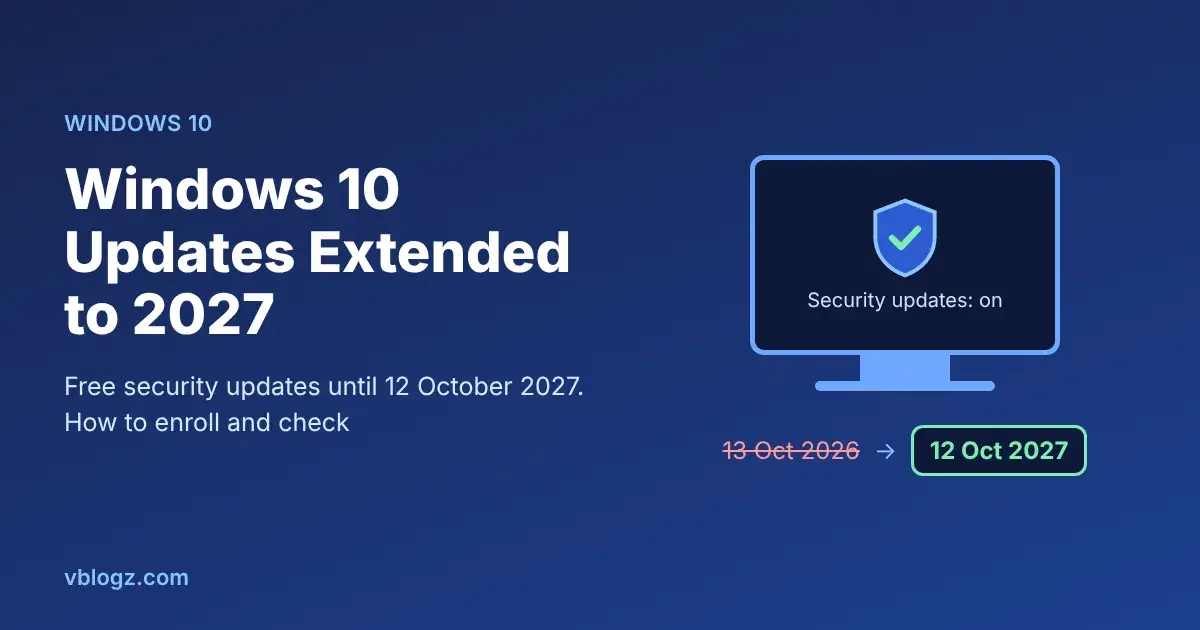
Yes. A Windows 10 PC only receives the new certificates if it's enrolled in Extended Security Updates, which for home users is free and now runs until 12 October 2027.
Terms like UEFI and BIOS confusing? Our computer full forms list explains them in plain words.



Comments 0
No comments yet. Start the conversation.